Where to find it
Better Attachments Pro appears in four places in Jira.
| Where | How to open it | What it shows |
|---|---|---|
| Project | Open a project and choose Better Attachments from the project’s apps | All attachments of the project, or of a JQL search |
| Work item | Open a work item and choose Better Attachments from its app buttons | The attachments of that work item |
| Search | Run a work item search, open the Apps menu and choose Better Attachments | The attachments of the search |
| Jira settings | Apps, then Manage labels (administrators only) | The labels of your site |
The table works the same way everywhere. Where a place differs, this guide says so.
The attachments table
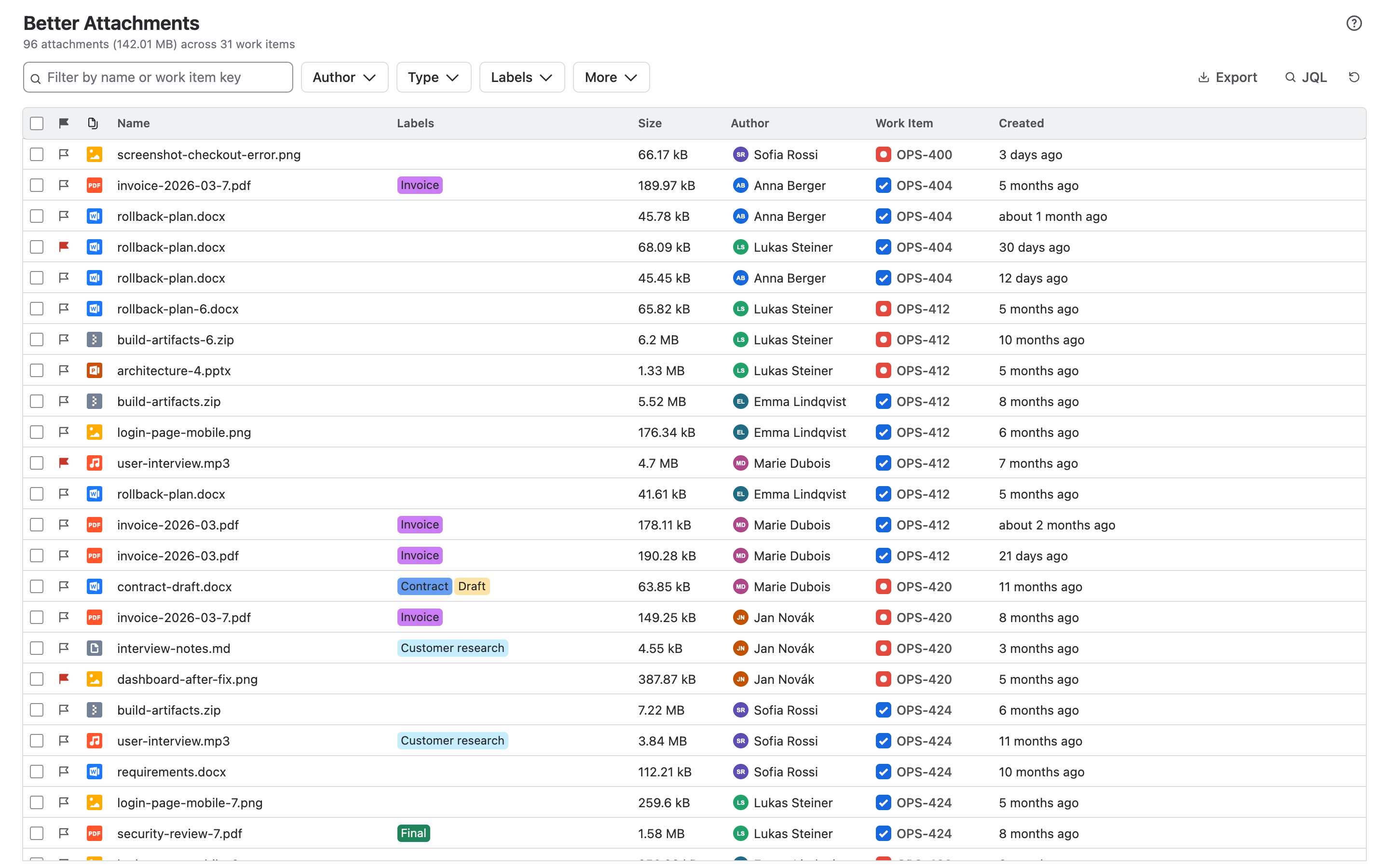
Each row is one attachment. The columns are:
| Column | Shows |
|---|---|
| Flag | Whether the attachment is flagged. Click to flag or unflag. |
| Type | A thumbnail for images, an icon for other file types |
| Name | The file name. Click it to open or download the file. |
| Labels | The labels of the attachment. Click the cell to change them. |
| Size | The file size |
| Author | Who uploaded the file |
| Work item | The work item the file is attached to. Click it to open the work item. |
| Created | When the file was uploaded |
| Revision | The version of the file, when revisions are grouped |
Above the table you see how many attachments were found, their total size and how many work items they belong to.
Sort
Click a column heading to sort by it. Click again to reverse the order, and a third time to remove the sorting.
Show, hide and resize columns
- Hover over a column heading and click the eye to hide the column. A menu in the filter bar lists hidden columns and brings them back.
- Drag the right edge of a column heading to change its width.
- The cog on Work item adds the summary to the key. The cog on Created switches between “3 days ago” and the exact date.
Your column settings are saved for you and apply the next time you open the app.
Filters
| Filter | Shows |
|---|---|
| Text | Attachments whose file name, work item key or work item summary contains the text |
| Type | Attachments of the chosen file types |
| Author | Attachments uploaded by the chosen people |
| Labels | Attachments with the chosen labels |
| More, Show flagged attachments only | Flagged attachments |
| More, Group attachment revisions | Not a filter: turns revision grouping on or off |
Filters combine: an attachment has to match all of them. The button next to the filters shows how many items are hidden and clears all filters with one click.
Search with JQL
On the project page, the JQL button opens Jira’s query editor. Enter any search for work items and press Enter. The table then shows the attachments of every work item the search finds, from as many projects as the search covers.
- The search is saved with the project. Everyone who opens the app in that project gets the same view.
- To go back, enter
project = KEYwith the key of your project. - Reload fetches the attachments again, for example after files were added.
When you open the app from a work item search, it starts with that search. Changes you make to the JQL there are not saved.
Labels
Labels sort attachments into categories of your own, such as “Contract” or “Draft”.
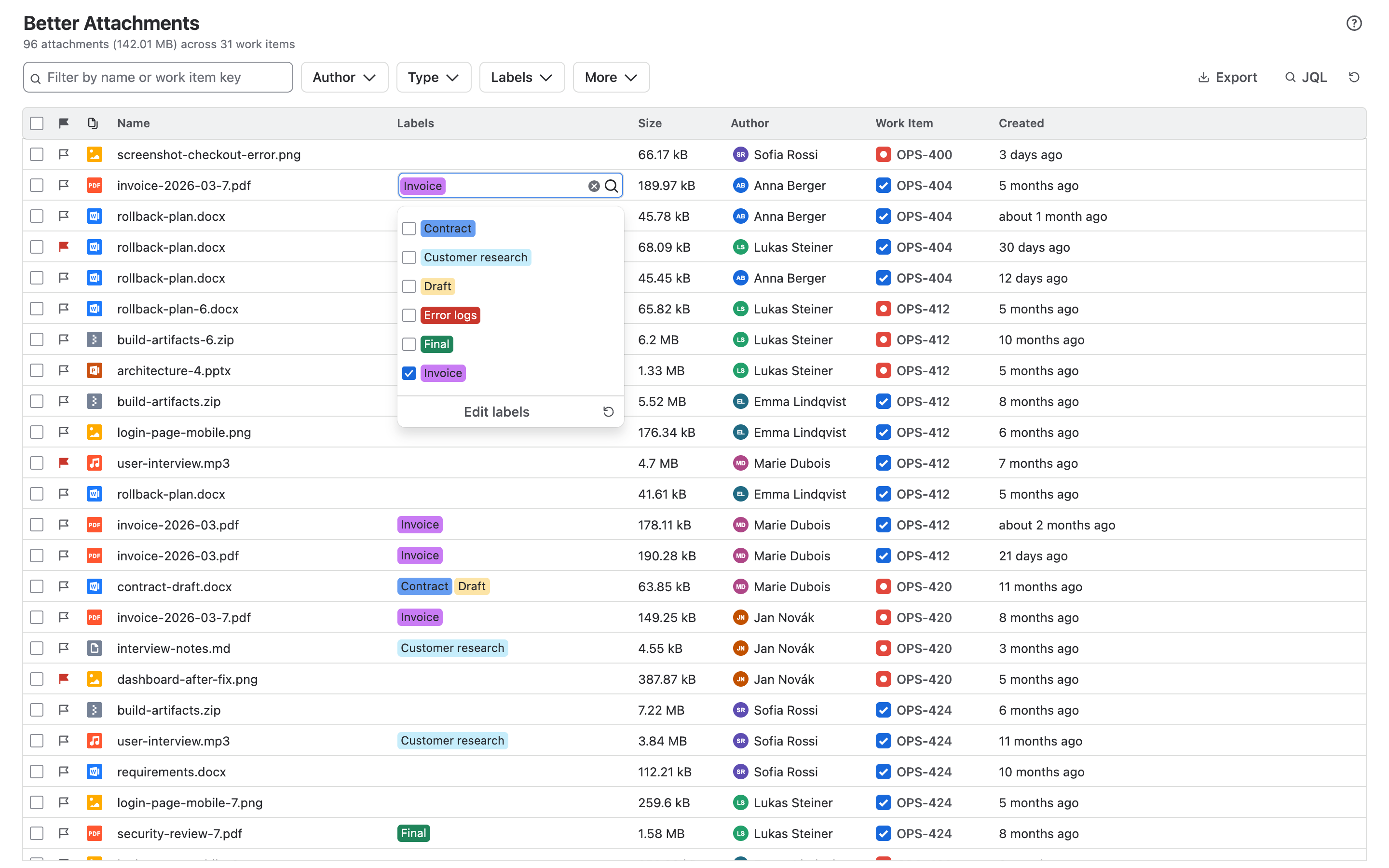
- Click the Labels cell of an attachment, then tick the labels it should have. Type to search.
- Edit labels at the bottom of the list opens the label sidebar.
- Administrators create, rename, recolour and delete labels under Jira settings, Apps, Manage labels. The labels are the same for the whole site.
Flags
Click the flag at the start of a row to mark an attachment, for example because it needs a review. Click again to remove the flag. More, Show flagged attachments only lists what is flagged. Flags are shared: everyone sees the same flags.
Revisions
When several files with the same name are attached to one work item, Better Attachments treats them as versions of one file.
Turn on More, Group attachment revisions. The newest upload becomes the main row with its revision number. Older versions fold away underneath and open with the arrow at the start of the row.
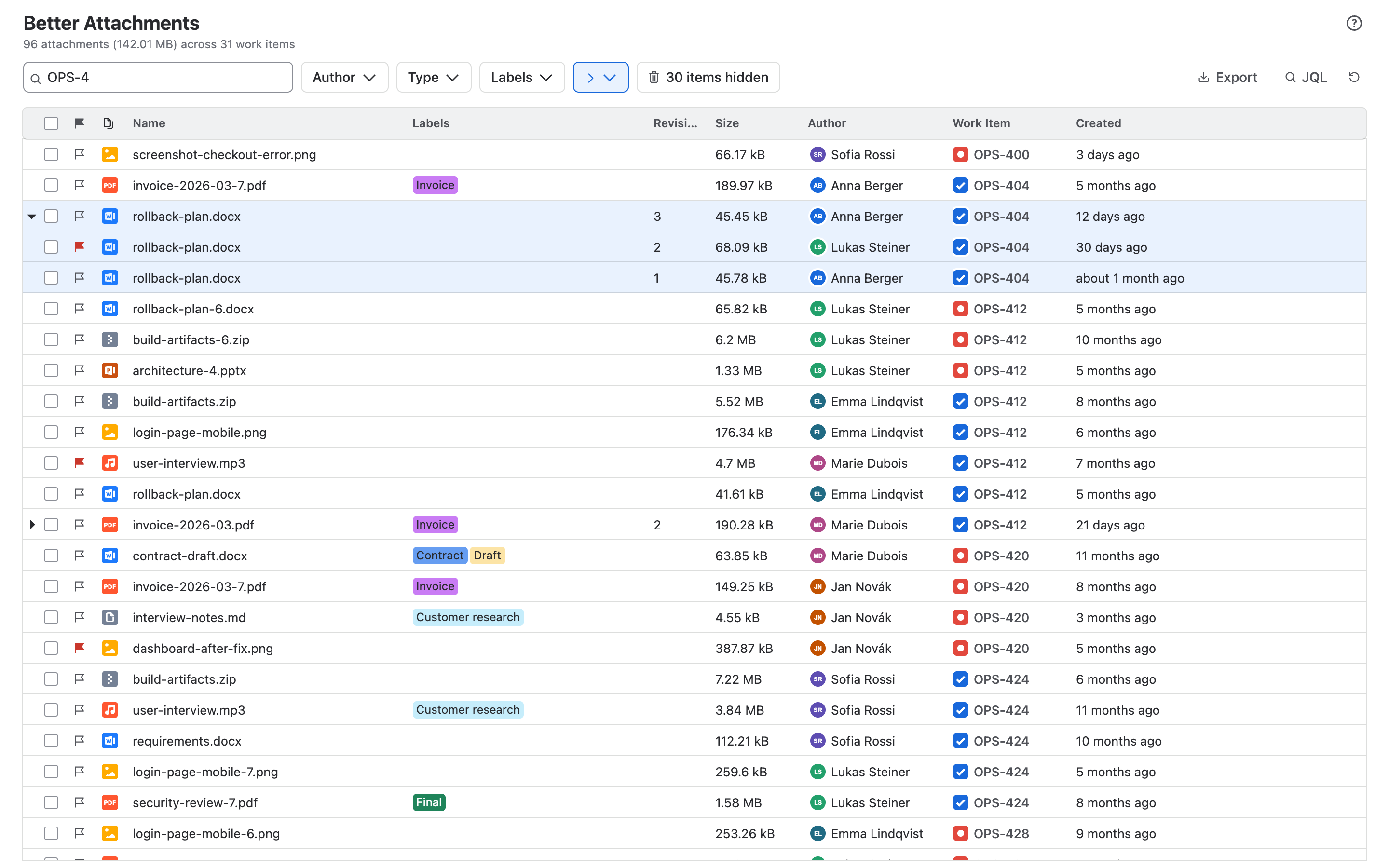
Files with the same name on different work items are not grouped.
Download
- Tick one attachment and choose Download to get that file.
- Tick several and choose Download as .zip to get one archive.
- Group files into subfolders by work item key puts each work item’s files into a folder of its own.
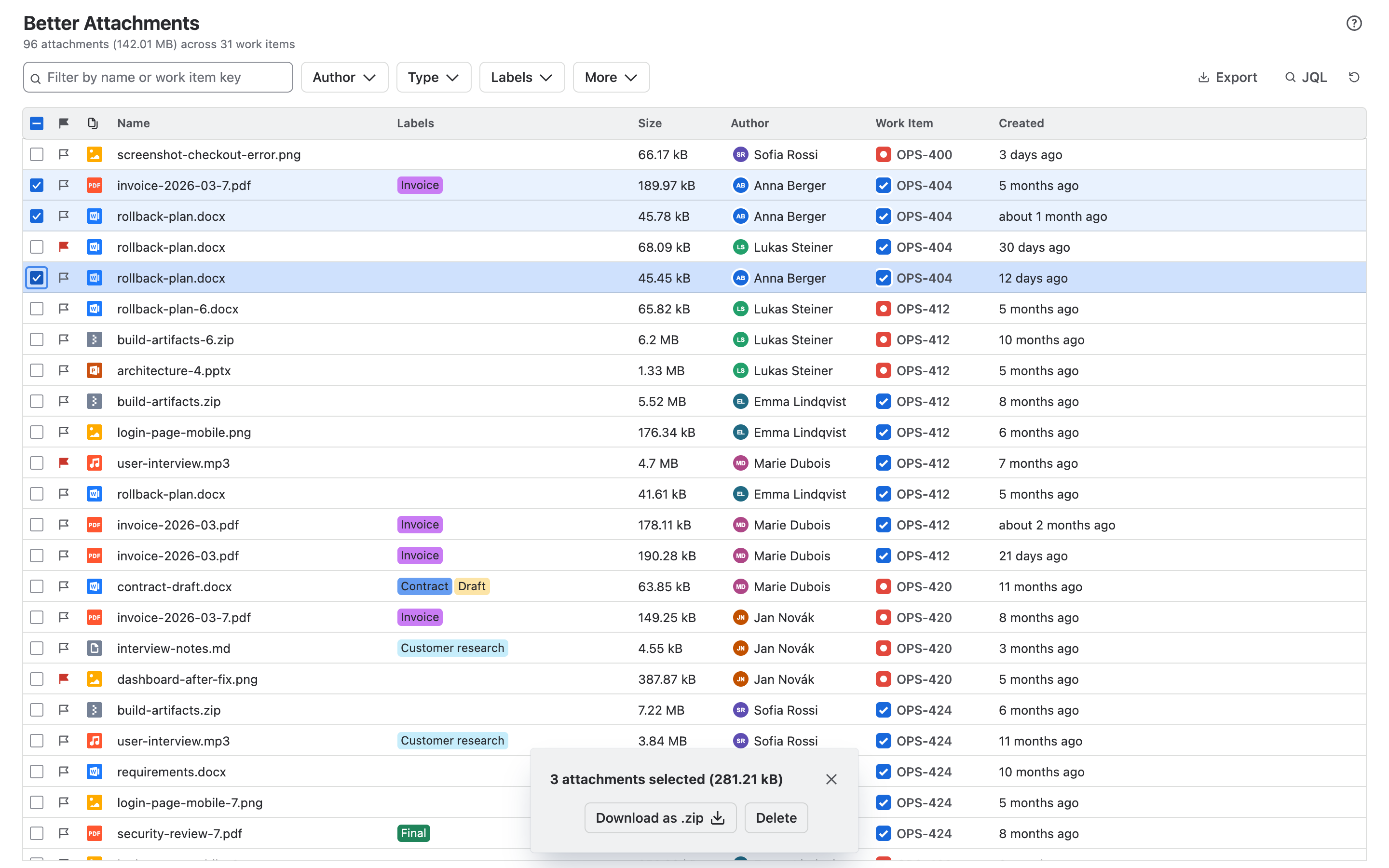
A large selection is split into several archives, which you download one after the other. The cog lets you set how large one archive may be: up to 10,000 files or 1 GB.
Delete
Tick the attachments, choose Delete and confirm. Deleted attachments are removed from Jira permanently and cannot be restored.
You can only delete attachments that Jira allows you to delete. If you lack the permission, the button is disabled.
Export to CSV
Export, Download as CSV saves the table as a file for a spreadsheet. The export contains the rows you see, in the order you see them, with the visible columns.
On a work item
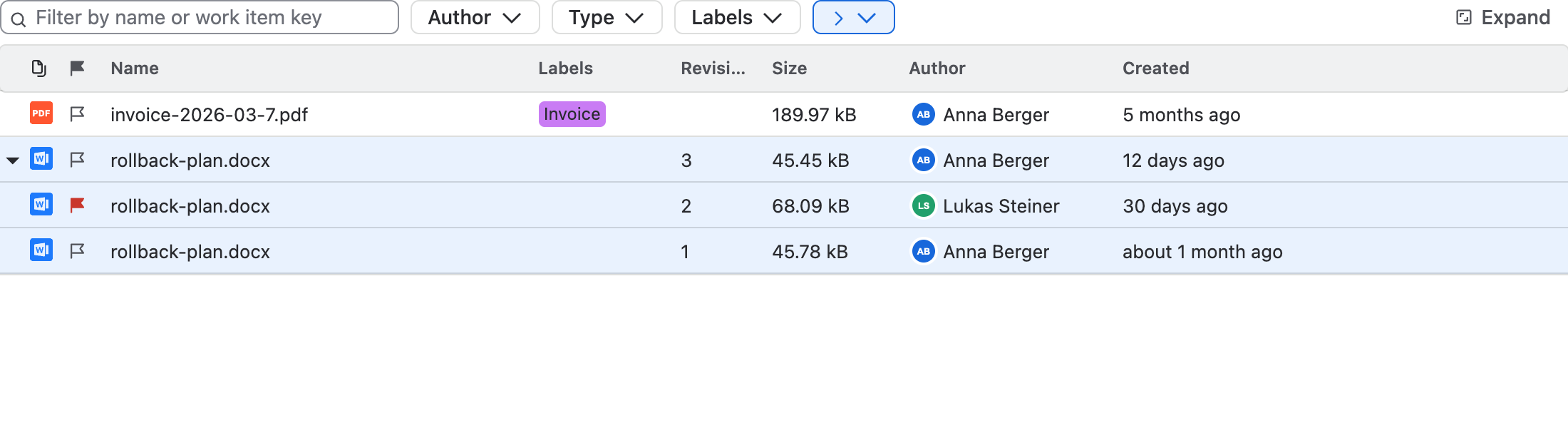
The panel shows the attachments of the work item with their labels, flags and revisions, and updates when files are added or removed. Expand opens the full view with download, delete and export.
Limits
| Work items in one view | up to 60,000 |
| Files per ZIP archive | up to 10,000 |
| Size per ZIP archive | up to 1 GB |
Help
Use the ? button in the app, or the support portal. Tell us what you were doing and what you saw. A screenshot helps.